Flow Metrics & Analytics

Cumulative Flow Diagram

Analyze the flow of your work over time. Reveal key insights into your process metrics.
Instantly spot bottlenecks.

Review the Current State of Your Work

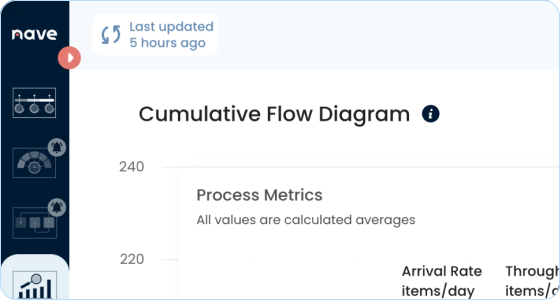
In the Cumulative Flow Diagram (CFD), each colored area represents a status in your board. The horizontal axis shows a timeline and the vertical axis displays the number of tasks in your statuses. The size of these colored areas indicates how many work items are currently on each status.
Strive to keep the number of tasks in progress within your WIP limits. Keeping WIP limits in check is what makes delivery faster, smoother, and more predictable.

cumulative flow diagram - evaluate the current state of your work

Measure Your Work in Progress

By hovering over the graph, you can see the number of items in each process state on the selected date. You can also track the accumulated number of tasks completed, those in the ‘Done’ state, in the selected time frame.

You can switch between 'process' and 'states' in your WIP tooltip to see your total WIP or the WIP in each of the statuses on your board.

cumulative flow diagram - measure the amount of work in progress

Evaluate Your Delivery Times

The horizontal difference between the top and the bottom line of a CFD area at any point along the graph is your process's approximate average cycle time. The approximate average cycle time shows you how long it took, on average, for items to be completed on the selected day.

Comparing the average cycle times from your CFD and Cycle Time Histogram can give you a good understanding of your process performance. If the values are roughly equal, delivery becomes more predictable and easier to manage.

cumulative flow diagram - assess your delivery times

Track How Much Work Your Team Delivers

The bottom line of your CFD represents the ‘Done’ state of your process. By observing that line on the CFD, you can measure the total amount of work that your team has delivered. The slope of that line between any two points indicates your average throughput between those two points.

A productive and self-organized team will be able to complete tasks quickly and so will see the ‘Done’ area grow rapidly. Watch out for a flatter gradient in that area! The slower it grows, the longer your delivery times are.

cumulative flow diagram - observe how much work your team delivers

Monitor the Pace You Start and Finish Your Work

The top line of the graph represents the arrival rate of tasks, while the bottom line shows their departures. These are the rates at which you start new work and finish outstanding work.

To achieve a predictable workflow, strive to keep your WIP as consistent as possible. If the WIP is consistent, the arrival rate and departure rate lines will grow in sync and the distance between them will stay equal.

cumulative flow diagram - keep an eye on the pace you start and finish your work

Analyze How Arrival and Throughput Rates Change Over Time

The ‘Arrival & Throughput Rates’ widget on the Cumulative Flow Diagram enables you to track how your arrival and throughput rates change over time in the selected time frame. Ideally, the lines should overlap with each other.

If the arrival line goes up, this means that you’re starting work faster than you finish it and your team is working on more tasks than they are able to handle at a time. A higher arrival rate translates to increased WIP and usually results in increased cycle time, reduced team efficiency and potential delays.

cumulative flow diagram - track how arrival and-throughput rates change over time

Reveal Key Insights into Your Process Metrics

Evaluate the averages of your flow metrics to ensure work is being started and completed at a consistent pace. Identify statuses where tasks may be piling up and analyze cycle time to determine where work takes the longest.

Based on Little's Law, Average Cycle Time = Average Work In Progress / Average Throughput. The more accurate the equation, the healthier your process. If the math breaks down for you, it is time to take a closer look at your management practices.

cumulative flow diagram - monitor your process health

Spot Bottlenecks Instantly

The Cumulative Flow Diagram gives you instant insight into the exact amount of work in each state of your process. If one or more of the areas that represent WIP start expanding, it signifies a bottleneck in that state and a problem stemming from your workflow.

Remember to account for changes like team size or any public holidays before jumping to conclusions - these could provide explanations for unexpected spikes in your activity.

cumulative flow diagram - spot bottlenecks instantly

Ready to transform your workflow?

Take the first step with a 14-day free trial of Nave and elevate your team’s performance.

Create Your First Dashboard Now